
QComboBox further styling?
-
I have the following QComboBox with following stylesheet:
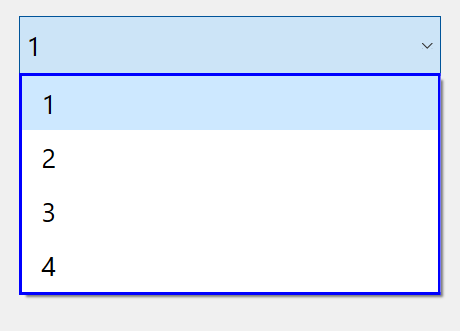
QComboBox {
	font-size: 18px;
}

QComboBox QListView {
    border: 2px solid blue;
}

QListView::item {
	padding: 5px 10px;
}
now I want to change further 3 things, for the shadow i was able to take it down with the following code in PyQt
self.combobox.findChild(QFrame).setWindowFlags(
            Qt.WindowType.Popup | Qt.WindowType.NoDropShadowWindowHint
        )
now I want to change the remaining 2 things:
-
The size of the drop down arrow, I want to make it bigger, but keep the same icon. I tried changing ::drop-down and ::down-arrow width but that changes the icon entirely into another one.
-
The padding between the QComboBox chosen value and its border (basically want the same padding as the items in QListView and thus all numbers aligned vertically).
Thanks in advance for all your help.
-
-
I have the following QComboBox with following stylesheet:
QComboBox {
	font-size: 18px;
}

QComboBox QListView {
    border: 2px solid blue;
}

QListView::item {
	padding: 5px 10px;
}
now I want to change further 3 things, for the shadow i was able to take it down with the following code in PyQt
self.combobox.findChild(QFrame).setWindowFlags(
            Qt.WindowType.Popup | Qt.WindowType.NoDropShadowWindowHint
        )
now I want to change the remaining 2 things:
-
The size of the drop down arrow, I want to make it bigger, but keep the same icon. I tried changing ::drop-down and ::down-arrow width but that changes the icon entirely into another one.
-
The padding between the QComboBox chosen value and its border (basically want the same padding as the items in QListView and thus all numbers aligned vertically).
Thanks in advance for all your help.
@rida_zouga said in QComboBox further styling?:
The size of the drop down arrow, I want to make it bigger, but keep the same icon. I tried changing ::drop-down and ::down-arrow width but that changes the icon entirely into another one.
The style sheet sometimes overrides parts of the default styling. I guess there is nothing you can do to keep the same icon. You need to provide your own image for the arrow.
The padding between the QComboBox chosen value and its border (basically want the same padding as the items in QListView and thus all numbers aligned vertically).
Have you had a look at the style sheet examples: https://doc.qt.io/qt-6/stylesheet-examples.html ? Look for QComboBox. There is an example that claims to
shift the text when the popup opens. I guess you want to have it always and not just when the popup opens, but the padding should be the same.BTW, if you want to keep the users wishes for font sizes (the corresponding OS settings), you should use the unit
eminstead ofpxfor the font size (1em= default font size). -
-
@rida_zouga said in QComboBox further styling?:
The size of the drop down arrow, I want to make it bigger, but keep the same icon. I tried changing ::drop-down and ::down-arrow width but that changes the icon entirely into another one.
The style sheet sometimes overrides parts of the default styling. I guess there is nothing you can do to keep the same icon. You need to provide your own image for the arrow.
The padding between the QComboBox chosen value and its border (basically want the same padding as the items in QListView and thus all numbers aligned vertically).
Have you had a look at the style sheet examples: https://doc.qt.io/qt-6/stylesheet-examples.html ? Look for QComboBox. There is an example that claims to
shift the text when the popup opens. I guess you want to have it always and not just when the popup opens, but the padding should be the same.BTW, if you want to keep the users wishes for font sizes (the corresponding OS settings), you should use the unit
eminstead ofpxfor the font size (1em= default font size).@SimonSchroeder Tried that ::on state to make only padding but it doesn't work, you have to change either border or background-color to make it happen but then all native style is gone which definitely not what I want, too bad for the icon it would be great to make it bigger or smaller and keep it native for os, anyways thank you so much for your help.
-
@SimonSchroeder Tried that ::on state to make only padding but it doesn't work, you have to change either border or background-color to make it happen but then all native style is gone which definitely not what I want, too bad for the icon it would be great to make it bigger or smaller and keep it native for os, anyways thank you so much for your help.
@rida_zouga Unfortunately, this is how it works in Qt: If you are changing the style sheet you'll loose some of the default styling. What I find most annoying is that normally the "OK" and "Cancel" buttons of a dialog have the same width. If I apply styling, the OK button shrinks.
One of the best solutions is to apply a global style sheet that changes the appearance of everything. Then, you can make minor adjustments that don't mess up everything. We are using a style sheet we found on the internet.
-
@rida_zouga Unfortunately, this is how it works in Qt: If you are changing the style sheet you'll loose some of the default styling. What I find most annoying is that normally the "OK" and "Cancel" buttons of a dialog have the same width. If I apply styling, the OK button shrinks.
One of the best solutions is to apply a global style sheet that changes the appearance of everything. Then, you can make minor adjustments that don't mess up everything. We are using a style sheet we found on the internet.
@SimonSchroeder can you share the link for that stylesheet please and thanks for all your replies
-
We started with this style sheet (it's been a while ago, so it might have changed in the meantime): https://github.com/colinduquesnoy/qdarkstylesheet
We just grabbed the .qss and the necessary icons from that repository.
This was because we wanted to have a dark style (and at first used the default light mode of Qt on Windows). Qt didn't have a dark mode back then. Then we searched for all the different colors that are used. Here are the colors we have found (and maybe even changed some colors):
    BACKGROUND -----------

        Light  #4D545B #505F69 (unpressed)
        Normal #31363B #32414B (border, disabled, pressed, checked, toolbars, menus)
        Dark   #232629 #19232D (background)

    FOREGROUND -----------

        Light  #EFF0F1 #F0F0F0 (texts/labels)
        Normal         #AAAAAA (not used yet)
        Dark   #505F69 #787878 (disabled texts)

    SELECTION ------------

        Light  #179AE0 #148CD2 (selection/hover/active)
        Normal #3375A3 #1464A0 (selected)
        Dark   #18465D #14506E (selected disabled)
Each occurrence of a color we replaced with
%1,%2,%3, etc. in the style sheet. If we want to apply either light mode or dark mode we load the style sheet as string and replace the dark or light colors withQString::arg()and then apply the style sheet.