
Need a canvas like widget
-
Hi,
I'm trying to write an application that has three main widgets:
- a (classical) menu bar at the top
- a canvas to draw results on in the middle, these will be the measurement results of a logic sniffer, together with timing markers and such
- a status bar at the bottom
I'm pretty much at a loss as to what to use for the middle part: the drawing area for the measurement results.
I have tried using the example given with a widget derived from QWidget (*) but this will have its origin at the top left corner of the main window, ie it will cover the menu bar.
I have also tried embedding the QWidget into a QFrame to no avail.EG When I started developping the program using Perl/Tk, I could use the (Scrolled) Canvas widget, but I cannot find anything similar in qt5!
I'd say that there should be something that I could use, but ... what?
Thanks in advance for any help,
Josef
(*) https://doc.qt.io/archives/qt-5.15/qtwidgets-painting-basicdrawing-example.html -
Hi,
I'm trying to write an application that has three main widgets:
- a (classical) menu bar at the top
- a canvas to draw results on in the middle, these will be the measurement results of a logic sniffer, together with timing markers and such
- a status bar at the bottom
I'm pretty much at a loss as to what to use for the middle part: the drawing area for the measurement results.
I have tried using the example given with a widget derived from QWidget (*) but this will have its origin at the top left corner of the main window, ie it will cover the menu bar.
I have also tried embedding the QWidget into a QFrame to no avail.EG When I started developping the program using Perl/Tk, I could use the (Scrolled) Canvas widget, but I cannot find anything similar in qt5!
I'd say that there should be something that I could use, but ... what?
Thanks in advance for any help,
Josef
(*) https://doc.qt.io/archives/qt-5.15/qtwidgets-painting-basicdrawing-example.html@jmoellers
I am surprised at what you are saying. Untested by me, but I imagine if you are drawing in aQWidgetthen coordinates will be relative to that widget, not external ones. Unless I guess if you put the menu and status bars inside the widget you want to draw in, in which case don't. Your canvas/drawing widget doesn't need other unwanted widgets in it. Don't forget you could always create a dedicated widget for your canvas and all 3 widgets onto some containing widget.In any case maybe you have not seen QMainWindow Class
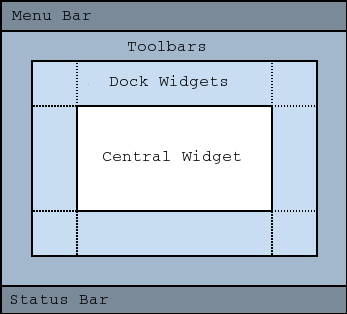
That gives you your menu bar and status bar. Toolbars and dock widgets are optional. Use the central widget for your canvas.
You can draw on a
QWidget, but if you have a lot to do be aware of the QGraphicsView widget. -
Thanks, JonB!
I probably wrote it ambiguously:
Yes, the drawing coordinates are relative to the QWidget, but the QWidget itself was placed in the top left corner of the main window as is the MenuBar, so the QWidget covers the MenuBar.
I had thought that the QWidget would be placed vertically below the MenuBar:+-------+ |MenuBar| +-------+ |QWidget| +-------+I'll try the QMainWindowClass.
Re your last tip: No, there won't be that much drawing. I guess that I won't be able to keep the entire graph in memory and have some kind of viewport (the logic sniffer can sample up to 24k events), so there would be some drawing when the user scrolls through or zooms into the sample graph. But I'll look into the QGraphicsView widget, too.
Thanks again and have a nice sunday!
-
Thanks, JonB!
I probably wrote it ambiguously:
Yes, the drawing coordinates are relative to the QWidget, but the QWidget itself was placed in the top left corner of the main window as is the MenuBar, so the QWidget covers the MenuBar.
I had thought that the QWidget would be placed vertically below the MenuBar:+-------+ |MenuBar| +-------+ |QWidget| +-------+I'll try the QMainWindowClass.
Re your last tip: No, there won't be that much drawing. I guess that I won't be able to keep the entire graph in memory and have some kind of viewport (the logic sniffer can sample up to 24k events), so there would be some drawing when the user scrolls through or zooms into the sample graph. But I'll look into the QGraphicsView widget, too.
Thanks again and have a nice sunday!
@jmoellers said in Need a canvas like widget:
I had thought that the QWidget would be placed vertically below the MenuBar:
Widgets are placed relatively to each other --- such as "vertically below" --- when they are placed on a containing widget which has a layout. If you just place widgets directly onto a containing widget which does not have a layout they are placed absolutely, by default all at (0, 0) so top left, and on top of each other/overlapping. Then you are responsible for moving them (setting their top left coordinate) yourself. Hence whatever you are saying about your menu bar and canvas widget overlapping and sharing the (0,0) coordinate.
In the usual case you should use layouts on containing widgets, so that you place child widgets logically and Qt takes care of the exact coordinates required, maintaining their relative positions. You did not do that and that is why it did not work as you desired.
QMainWindowis a containing widget with a complex layout as shown in the pic. You could create something like it yourself with parent-child widgets and layouts --- so it is not "magic" --- but it's convenient to use it for just the layout you want. Make the central widget be whatever for your canvas and its relative coordinates will be used for anything you place on it. The menu and status bars will not overlap or interfere with its coordinates. -
@JonB said in Need a canvas like widget:
QMainWindow is a containing widget with a complex layout as shown in the pic. You could create something like it yourself with parent-child widgets and layouts --- so it is not "magic" --- but it's convenient to use it for just the layout you want. Make the central widget be whatever for your canvas and its relative coordinates will be used for anything you place on it. The menu and status bars will not overlap or interfere with its coordinates.
Well, as it turned out, I did already have a QMainWindow, but wasn't aware of what it actually provides, so I got mself a QMainWindow and then explicitly created a QMenuBar inside rather than using the already provided
w->menuBar();(*w is my QMainWindow).I now do
w->setCentralWidget(new QWidget);
    Canvas *Drawingarea = new Canvas(w->centralWidget());
and Bob's my father's brother.
Reading (in Germany we have a saying that "Whoever can read has a definite advantage") the documentation about QMainWindow, it is actually exactly what I need!
-
J jmoellers has marked this topic as solved
